
How to Set Up Your Ingram Spark Account
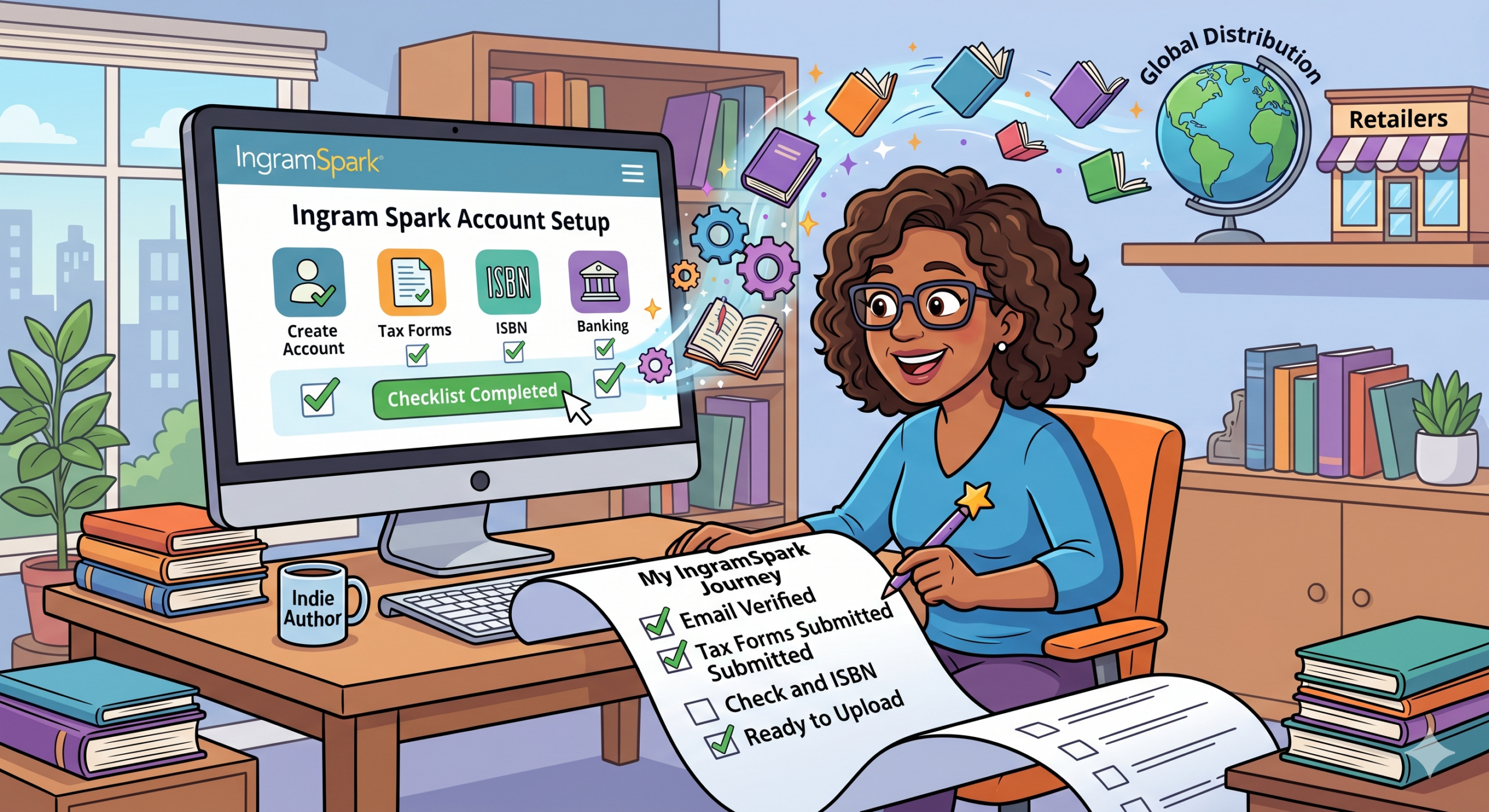
Setting up an IngramSpark account is a bit more involved than a typical social media profile because you’re essentially creating a small business entity.
Here is a comprehensive checklist to get you from “Create Account” to “Ready to Upload.”
Phase 1: Preparation (Have these ready)
[ ] Valid Email Address: One you check often for proofs and order updates.
[ ] Physical Address: A real street address (IngramSpark typically does not allow PO Boxes for account registration).
[ ] Phone Number: Needed for Two-Factor Authentication (2FA).
[ ] Tax ID: Your Social Security Number (SSN) if you are an individual/sole proprietor, or an EIN if you have an LLC or corporation.
[ ] Banking Info: Your Routing and Account numbers (for royalty direct deposits).
[ ] Credit/Debit Card: To be kept on file for wholesale orders or shipping fees.
Phase 2: Initial Registration
[ ] Create Login: Go to IngramSpark and click Create Account.
[ ] Verify Email: Check your inbox for an activation link. You won’t be able to proceed without clicking this.
[ ] Choose Account Type: Select Independent Author or Small Publisher.
Tip: Use your legal name or business name here. Do not use a pen name for the account setup itself, as this must match your tax/banking records.
Phase 3: Legal & Tax Setup
[ ] Complete Digital Agreements: You will be prompted to sign several global distribution agreements.
Note: If you plan to use Amazon KDP for your ebook, you may want to “Opt-Out” of the Amazon Kindle ebook distribution specifically to avoid duplicates.
[ ] Fill Out Tax Forms: Complete the digital W-9 (for US) or W-8BEN (for international) forms within the dashboard. IngramSpark cannot pay you until this is validated.
[ ] Set Up Compensation: Enter your bank details in the “Compensation” section so they know where to send your royalties.Phase 4: Final Account Verification
Phase 4: Final Account Verification
[ ] Security Questions: Set up your recovery questions and enable 2FA if prompted.
[ ] Address Verification: Ensure your “Shipping” and “Billing” addresses are confirmed.
[ ] Dashboard Check: Look for any red banners or “Action Required” notifications. If your dashboard says “Set up your account” instead of “Add a Title,” you have missed a sub-step in the profile.
Phase 5: Ready for Your First Title
[ ] ISBNs: Have your ISBNs ready (one for paperback, one for hardcover, one for ebook).
Note: You can buy these via Bowker (US) or through IngramSpark at a discount during the title setup.
[ ] Files: Ensure your interior and cover are in PDF/X-1a:2001 or PDF/X-3:2002 format to meet their specific printer requirements.
Pro-Tip: As of 2026, IngramSpark has removed many of its “setup fees,” but they still charge for revisions after a book is live. Double-check your files before hitting that final “Submit” button!